The Waiting Room Is the Front Door: A Fifteen-Minute Lobby Check for Video Calls
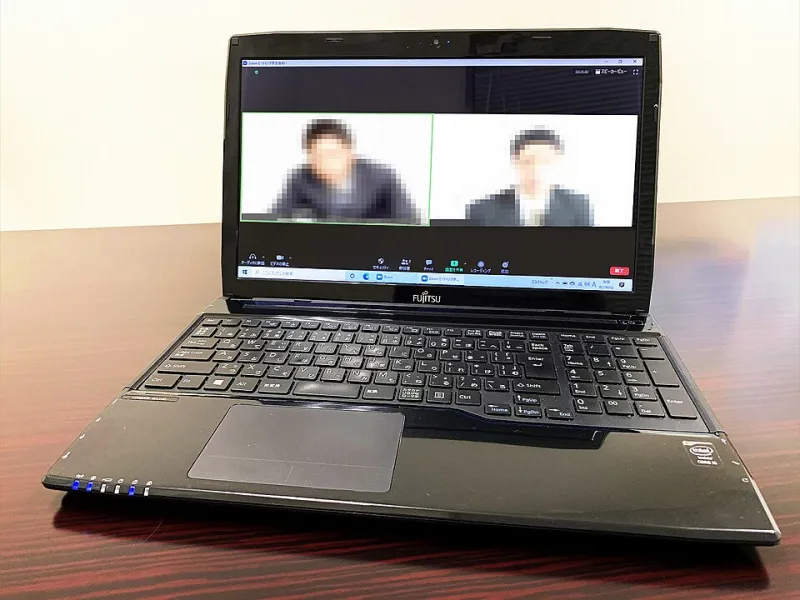
Photo: Project Kei, CC BY-SA 4.0, via Wikimedia Commons
There is a particular kind of meeting link that gets forwarded around a small organisation like a spare door key. It starts life in a diary invite for a trustee call, gets pasted into a supplier email, then appears on a public events page because someone was being helpful. By the time the meeting happens, nobody is entirely sure who has the link or what happens when a stranger clicks it.
This is not a theoretical problem. Video-call defaults are usually set once — often by whoever created the account first — and then left alone for years. The settings are buried in admin consoles and personal profiles, the labels change, and the person who understood them has since left. Meanwhile the link keeps working.
So here is a small, slightly uncomfortable audit. It takes about fifteen minutes per platform, and it is best done before the next board meeting rather than during it.
The lobby is not security theatre
A waiting room — Zoom calls it that, Teams calls it the lobby, Google Meet has host controls and join rules — is the simplest access control you have on a video call. It does one job: it stops someone entering the room until a known person lets them in.
That matters because meeting links are not passwords. They are addresses. They get shared, indexed, forwarded and guessed. A waiting room does not make you bulletproof, but it turns an open door into a reception desk. For a small UK charity or professional firm, that is usually the right trade-off.
The uncomfortable part is this: many organisations switched waiting rooms on during a panic in 2020 or 2021 and have never checked whether the setting still applies to externally hosted meetings, recurring links, or meetings created by newer staff. Defaults drift. People create personal accounts. Someone schedules a call from a phone.
Three platforms, one set of questions
The menus differ, but the questions are the same. For each platform, find the meeting options or host controls and check these six things:
- Is the waiting room or lobby on by default? Not just for meetings you schedule manually, but for recurring meetings and anything created by your team.
- Is there a passcode or PIN? If the link is public, a passcode is a second lock. If the link is private, it is still cheap insurance.
- Who can bypass the lobby? Ideally only people signed in with your organisation's account, or only the host. Everyone else waits.
- Who can screen share? Set it to host only unless the meeting genuinely needs a free-for-all. Screen sharing is how a lot of unpleasantness starts.
- Who can admit guests from the waiting room? Know the answer. In some setups, any signed-in participant can let people in.
- What does recording look like? Is there an audible or visual notice? Do you rely on the platform banner, or does someone actually say it out loud?
In Zoom, look under meeting settings for waiting room, passcode, and screen sharing. In Teams, check meeting options for lobby bypass and presenter rights. In Google Meet, check host controls for who can join and who can present. The exact labels move around, but the concepts do not.
The outsider test
Settings pages lie. Or rather, they describe what should happen, not what does happen when a link has been forwarded through three calendars and a mailing list.
Run this test once per platform, before your next external call:
- Use a personal phone on mobile data. Not the office Wi-Fi, not a work account. You want to look like a stranger.
- Sign out of everything. Open a private browser window or use a device that has never joined your meetings.
- Open the meeting link exactly as a guest would. Do not use host tools. Do not join from the organiser's calendar.
- Write down what you see. Waiting room? Passcode prompt? Straight in? A message saying the meeting has not started?
- Try the obvious mischief. Can you rename yourself to something silly? Can you share your screen? Can you see the chat before the host arrives?
- Repeat with a signed-in non-organisation account. This is the interesting one. Some platforms treat any signed-in user differently from a completely anonymous one.
- Screenshot the result and keep it. A dated screenshot is useful evidence for insurers, clients and trustees who ask how you manage external access.
If you get straight into a meeting without a lobby, do not panic. Fix the setting, then re-test from the same phone. The point is to close the loop, not to write a report about it.
Recording, consent and the bit nobody says out loud
Recording is an access issue too, just in a different direction. A recording captures people who did not choose to be in the room, and in the UK that brings data protection questions. The platform banner is not a substitute for telling people.
A short spoken notice at the start of the call is enough for most small teams: “Just to say we are recording this for the project notes. If anyone would rather not be recorded, say now and we will stop.” Then actually stop if someone asks. Put the same line in the calendar invite so it is not a surprise.
If you record trustee meetings, client calls or anything involving personal data, know where the file goes, who can access it, and how long you keep it. That is a five-minute conversation, not a policy project.
Put a date in the diary
The final step is the dull one. Give the check an owner and a date. Before every board meeting is too often; once a quarter is about right. Add “video-call lobby check” to the same calendar reminder as your restore drill or your access review. It takes less time than finding the settings the first time.
And when someone forwards a meeting link this week, you can be reasonably sure that the only people sitting in the waiting room are the ones you invited.